Upload your project to order a photo book that will be shipped to you.
Note:
Books must include between 10 – 100 pages single side (50 pages double-sided).
1.
Go to the Share Project menu > Order Photo Album.
2.
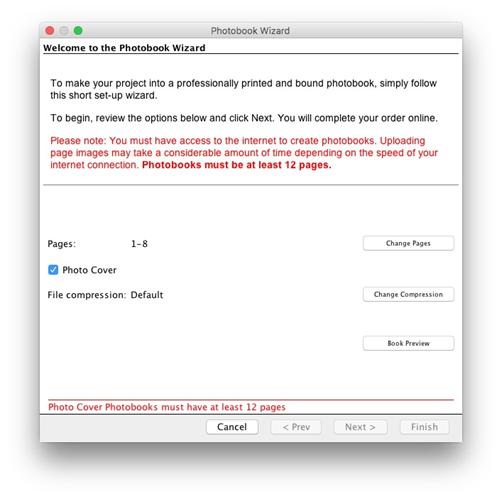
Select the pages included and set a cover type, then click
next.
3.
Select a Spine Color, enter a Spine Text and color, then
click Finish.
· Enable the Photo Cover box to use the first and last pages as the cover.
· Clear the Photo Cover box to use a leather cover book
· Book Preview – allows you to view a low res version of how the pages will layout
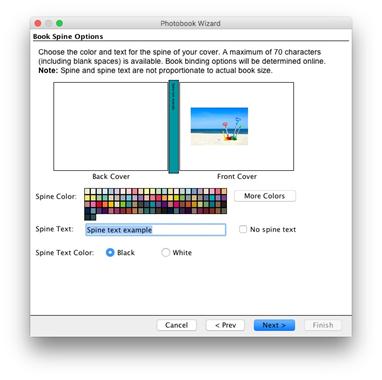
Book Spine Options (Photo Cover Only)
·
Spine Color - Click on a color square or click More Colors
to choose a spine color.
·
Spine Text – Enter a title you would like to display on the
spine of the book.
·
Spine Text Color – Set the text to white or black.
Summary – Click the check box to confirm your project and click Finish.
·
Pages will begin uploading to complete the order online.
Related Topics